
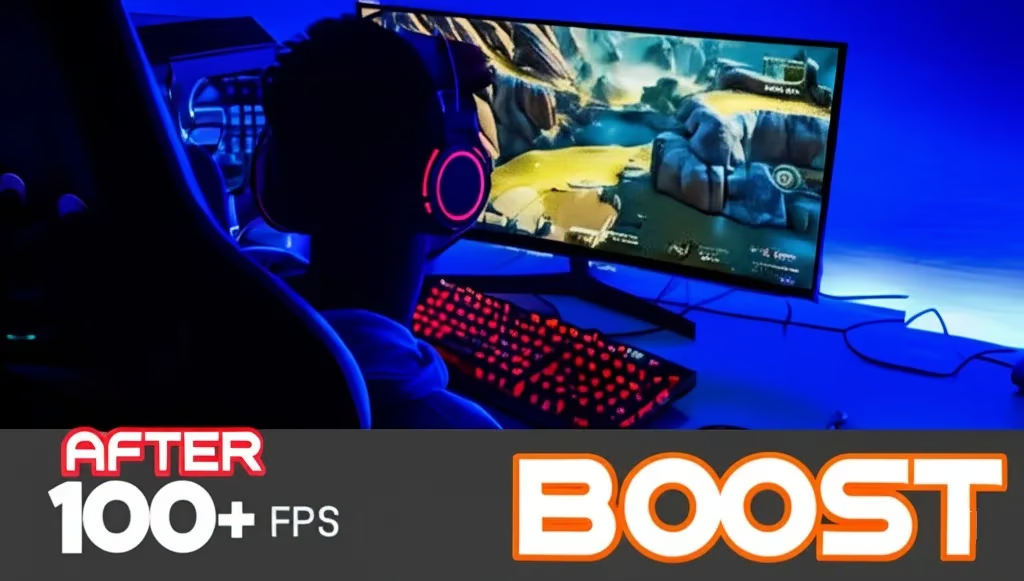
In the fast-paced world of PC gaming, nothing beats the thrill of a smooth, lag-free experience. Whether you’re battling it out in an intense multiplayer match or exploring a breathtaking open-world adventure, your gaming performance can define your enjoyment. At the heart of this experience lies Frames Per Second (FPS) a critical metric that determines how fluidly your game runs. Low FPS can lead to stuttering, input lag, and frustration, but the good news is you don’t need a cutting-edge rig to increase FPS and boost gaming performance.
This guide is your one-stop resource for optimizing your Windows 10 or 11 PC for gaming. We’ve packed it with proven, up-to-date methods sourced from reliable information and cross-checked for accuracy to help you squeeze every ounce of performance from your system. Expect detailed, step-by-step instructions, a conversational tone to keep you engaged, and actionable tips that cater to both beginners and seasoned gamers.
Let’s get started and transform your gaming experience!
What is FPS and Why Does It Matter?
Before we jump into the optimization process, let’s break down what FPS is and why it’s a big deal.
- FPS (Frames Per Second) measures how many individual images your graphics card renders and your monitor displays each second. Think of it as the heartbeat of your game’s visuals.
- Why it matters: Higher FPS means smoother gameplay, faster reaction times, and a more immersive experience. Low FPS, on the other hand, can make even the best games feel clunky and unresponsive.
Here’s a quick rundown of FPS benchmarks:
- 30 FPS: Barely playable; you’ll notice choppiness.
- 60 FPS: The sweet spot for most gamers, smooth and enjoyable.
- 120+ FPS: Perfect for competitive play or high-refresh-rate monitors.
If your FPS is lagging, don’t worry, this guide will walk you through practical steps to increase FPS and boost gaming performance, tailored for Windows 10 & 11 as of March 2025.
Tap to get real time alerts!
10 Proven Methods to Increase FPS and Boost Gaming Performance
Below, you’ll find 10 actionable methods to optimize your PC for gaming. Each section includes detailed instructions, tips, and warnings to ensure you get the best results safely and effectively.
1. Enable Game Mode in Windows 10 and 11
What is Game Mode?
Game Mode is a built-in feature in Windows 10 and 11 that prioritizes gaming by suspending background tasks like updates and notifications. It’s a quick, easy way to boost gaming performance without digging too deep into your system.
How to Enable Game Mode:
- Windows 10 & 11:
- Press Windows key + I to open Settings.
- Click Gaming in the menu.
- Select Game Mode from the left sidebar.
- Toggle the Game Mode switch to On.
Why It Works: By reducing background activity, Game Mode frees up CPU and RAM for your game, helping to increase FPS especially on mid-range or older PCs.
Tip: If you’re running an older version of Windows 10, ensure you’ve installed the latest updates, as Game Mode was introduced with the Creators Update (2017).
2. Update Your Graphics Drivers
Why It’s Crucial:
Your graphics card (GPU) is the powerhouse behind your gaming visuals. Outdated drivers can bottleneck performance, causing low FPS, stuttering, or crashes. Keeping them updated ensures your GPU runs at peak efficiency, directly helping you boost gaming performance.
How to Update Graphics Drivers:
- Nvidia GPUs:
- Visit the Nvidia Driver Download page.
- Select your GPU model (e.g., RTX 3060) and Windows version (10 or 11).
- Download the latest driver and run the installer.
- Alternatively, use Nvidia GeForce Experience:
- Open the app, go to Drivers, and click Download for any available updates.
- AMD GPUs:
- Head to the AMD Driver Download page.
- Choose your GPU (e.g., RX 6700 XT) and Windows version.
- Download and install the latest driver.
- Or use AMD Radeon Software:
- Launch it, click Check for Updates, and install the latest version.
- Intel Integrated Graphics:
- Go to the Intel Download Center.
- Select your GPU (e.g., Intel UHD Graphics 630) and OS.
- Download and install the driver.
Note: You can also update your Graphics Driver Through Windows update as well, find your GPU name in Windows Device Manager.
Pro Tip: Restart your PC after updating to apply changes fully. Use tools like Display Driver Uninstaller (DDU) if you encounter issues with old driver remnants.
Latest Info: As of 2025, manufacturers like Nvidia and AMD regularly release game-ready drivers for new titles, so check monthly for updates.
3. Adjust In-Game Graphics Settings
Why It Helps:
Modern games offer a range of graphics settings that balance visuals and performance. Lowering resource-heavy options can dramatically increase FPS without needing hardware upgrades.
Key Settings to Tweak:
| Setting | Impact on FPS | Recommendation |
|---|---|---|
| Resolution | High | Lower to 900p or 720p if needed |
| Anti-Aliasing | Moderate | Set to low or off |
| Shadow Quality | High | Reduce quality or distance |
| Texture Quality | Moderate | Match your GPU’s VRAM (e.g., 4GB = Medium) |
| Draw Distance | Moderate | Lower to reduce rendering load |
How to Adjust:
- Launch your game and head to the Settings or Options menu.
- Find the Graphics or Video section.
- Start with a Low preset, then tweak individual settings upward until you hit your desired FPS-visuals balance.
- Use an in-game FPS counter (or tools like MSI Afterburner) to monitor changes in real-time.
Example: In a game like Call of Duty: Warzone, dropping shadows from Ultra to Low can boost FPS by 20-30%, depending on your GPU.
Note: Competitive players often prioritize FPS over visuals, so don’t be afraid to sacrifice eye candy for smoother gameplay.
4. Manage Background Processes and Startup Apps
Why It Matters:
Background apps like browsers, Discord, or update services consume CPU, RAM, and disk resources, dragging down your gaming performance. Shutting them down can increase FPS and reduce lag.
How to Close Background Processes:
- Press Ctrl + Shift + Esc to open Task Manager.
- Go to the Processes tab.
- Look for resource hogs (e.g., Chrome using 20% CPU).
- Right-click unnecessary apps and select End Task.
How to Disable Startup Apps:
- Windows 10/11:
- Open Task Manager (Ctrl + Shift + Esc).
- Click the Startup tab.
- Identify apps with High impact (e.g., Spotify).
- Right-click and choose Disable.
Caution: Avoid ending critical system processes like Windows Explorer or svchost.exe. When in doubt, leave it running.
Quick Win: Disabling Windows’ Game Bar overlays (if unused) can also free up resources, toggle it off in Settings > Gaming > Xbox Game Bar.
5. Optimize Power Settings for Maximum Performance
Why It Works:
Windows’ default power plans often prioritize energy savings over performance, capping your CPU and GPU. Switching to High Performance mode ensures your hardware runs at full throttle, helping boost gaming performance.
How to Switch Power Plans:
- Windows 10/11:
- Press Windows key and type Power Options.
- Choose High Performance. If hidden, click Show additional plans.
- Click Apply.
Laptop Users: Plug in your charger, as battery mode typically throttles performance even with High Performance selected.
Bonus: In Power Options, click Change plan settings > Change advanced power settings, and set Processor power management > Minimum processor state to 100% for max CPU output.
6. Defragment Your Hard Drive (HDD Users Only)
What It Does:
For traditional hard drives (HDDs), fragmented files slow down data access, increasing load times and potentially lowering FPS. Defragmenting reorganizes files for faster retrieval, helping boost gaming performance.
How to Defragment:
- Windows 10/11:
- Press Windows key and type Defragment.
- Select Defragment and Optimize Drives.
- Choose your HDD (e.g., C:) and click Analyze.
- If fragmented, hit Optimize and wait for completion.
Important: Skip this step if you use an SSD, defragmenting SSDs is unnecessary and can shorten their lifespan.
Latest Info: Windows 10 and 11 automatically schedule defragmentation for HDDs, but manual runs can still help if performance dips.
7. Overclock Your GPU or CPU (Advanced Users)
What is Overclocking?
Overclocking pushes your GPU or CPU beyond stock speeds for extra power, potentially increasing FPS by 10-20%. However, it risks overheating and instability, so proceed with caution.
How to Overclock Your GPU:
- Download MSI Afterburner Software from msi.com.
- Install and open the app.
- Slide Core Clock and Memory Clock up by 10-20 MHz.
- Test stability with FurMark (furmark.fr).
- Monitor temps, keep them below 80°C.
How to Overclock Your CPU:
- Restart your PC and enter BIOS (press Del or F2 at boot).
- Find CPU Settings (varies by motherboard, check your manual).
- Increase the CPU Multiplier or Base Clock in small steps (e.g., +0.1 GHz).
- Save, reboot, and test with Prime95 (mersenne.org).
Warning: Ensure proper cooling (e.g., aftermarket cooler) and research your hardware’s safe limits. Overclocking may void warranties.
8. Use Game Booster Software
What It Does:
Game boosters like Razer Cortex optimize your system by closing background apps, freeing RAM, and tweaking settings—all with one click. It’s an easy way to increase FPS for less tech-savvy users.
How to Use Razer Cortex:
- Download it from razer.com/cortex.
- Install and launch the app.
- Click Boost > Game Booster.
- Enable it before launching your game.
Alternatives: Try Game Fire or Wise Game Booster for similar results.
Note: Results vary – some users see a 5-10 FPS gain, while others notice minimal impact.
9. Upgrade Your Hardware
When Software Isn’t Enough:
If your FPS still lags after optimization, your hardware might be the bottleneck. Upgrading key components can boost gaming performance significantly.
Top Upgrades:
| Component | Why Upgrade? | Recommendation |
|---|---|---|
| GPU | Drives FPS directly | Nvidia RTX 3060 or AMD RX 6600 |
| RAM | Reduces stuttering | 16GB DDR4 (minimum) |
| CPU | Prevents GPU bottlenecks | Intel i5-12400 or AMD Ryzen 5 5600 |
Tips:
- Check compatibility with your motherboard and PSU.
- Use tools like HWMonitor to identify bottlenecks (e.g., 100% CPU usage with low GPU usage).
10. Extra Tweaks for Peak Performance
Here are bonus tricks to increase FPS further:
- Disable Visual Effects:
- Press Windows key + R, type sysdm.cpl, and hit Enter.
- Go to Advanced > Settings (under Performance).
- Select Adjust for best performance > Apply.
- Enable Hardware-Accelerated GPU Scheduling:
- Open Settings (Windows key + I).
- Go to System > Display > Graphics settings.
- Turn on Hardware-accelerated GPU scheduling and restart.
Conclusion
Boosting your PC’s gaming performance doesn’t require a fortune or a tech degree. From enabling Game Mode to tweaking in-game settings and considering hardware upgrades, these 10 methods give you the tools to increase FPS and boost gaming performance on Windows 10 and 11. Start with the simplest steps, test your results, and scale up as needed—your perfect setup is within reach.
Happy gaming and may your frame rates soar!